
Create an Excel shift plan very easily
You want to create an Excel shift plan and are wondering whether Excel is really enough for this? Clear answer: Yes, absolutely! Excel is often the most pragmatic and cost-effective solution for personnel planning, especially for small and medium-sized companies. Free download Excel shift plan template for free...
You want one Shift plan Exceland are wondering whether Excel is really enough for this? Clear answer: Yes, absolutely! Especially for small and medium-sized businesses, Excel is often the most pragmatic and cost-effective solution Personnel planning.
Get Excel shift plan template for free
Enter your email address and first name – we will send you the template directly. Ideal if you want to set up your shift schedule quickly and without extra software.
💡 Shift schedule Excel — quick answer
An Excel shift schedule combines:
- ✅ Table structurewith employees (rows) and days (columns)
- ✅ Automatic formulasfor hourly calculation and shift counting
- ✅ Conditional formattingfor visual overview (colors per layer)
- ✅ Free— no additional software required
This guide is your direct path to a plan that really works. Together we build a stable base and, with the right formulas and a few visual tricks, transform it into a tool that makes your everyday life easier.
Why Excel is often the best choice for your shift plan
A good shift schedule is so much more than just a spreadsheet of names and times - it is the backbone of your daily operations. It ensures clarity, prevents overload in the team and is the basis for fair, legally compliant operational planning. And this is exactly where a cleverly constructed one can help you Excel shift scheduleprovide invaluable services.
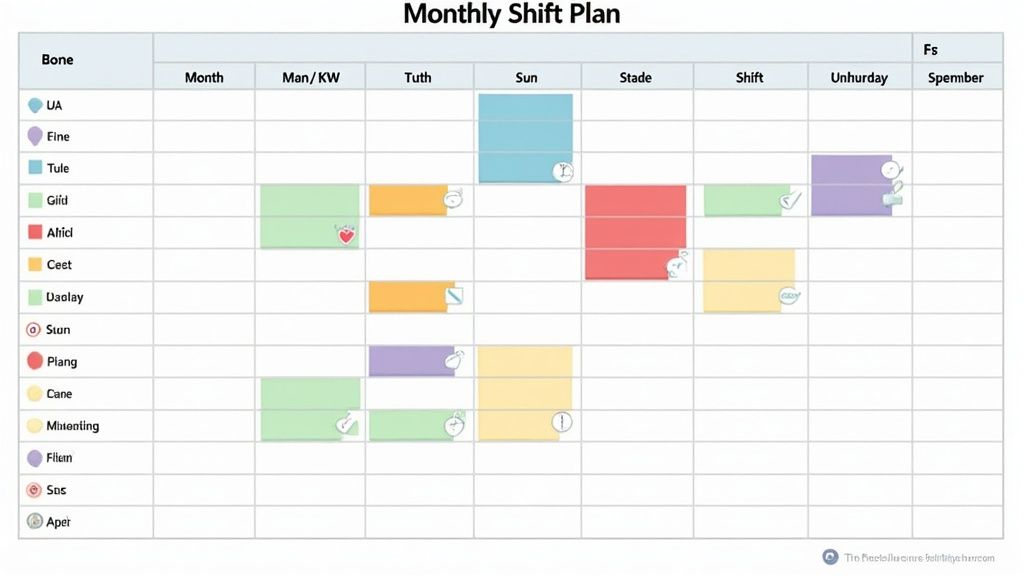
The advantages of an Excel plan in a nutshell
Before we get into practice, let's briefly clarify why so many companies swear by this method. The reasons are usually very down-to-earth and understandable.
- No additional costs:Microsoft Office is already in use in most companies. So you don't have to buy any new software to get started right away.
- Maximum flexibility:Every company works differently. In Excel you can tailor your plan exactly to your needs - from a simple weekly overview to complex monthly plans with a target/actual comparison.
- Full control:You determine the rules, the formulas and the design. There are no rigid specifications or restrictions imposed by ready-made software.
This table gives you a quick overview of the key features we cover to create an effective shift schedule.
Core functions for your Excel shift plan
| function | Your benefit | Difficulty level |
|---|---|---|
| Basic table structure | Creates a clear, concise structure for days, employees and shifts. | Easy |
| Formulas for calculating hours | Automates the calculation of working hours, breaks and overtime. | Medium |
| Conditional formatting | Visualizes shifts, overlaps or free days in color for a better overview. | Medium |
| Data validation (dropdowns) | Simplifies data entry and prevents errors in shift assignment. | Easy |
| Print layout optimization | Ensures that the plan looks legible and professional even on paper. | Easy |
With these building blocks you can create a plan that not only works, but also makes your work noticeably easier for you and your team.
What you should really pay attention to when planning
A plan is only good if it reflects reality. This means that it must take operational requirements into account as well as the needs of your employees. Always remember to adhere to legal requirements such as rest periods and maximum working hours - this is non-negotiable. A transparent and fair distribution of shifts is the key to a satisfied team.
A transparent, realistic and flexibly adaptable roster strengthens motivation and ability to plan for everyone involved. It is a sign of appreciation and good organization.
Even though Excel is extremely versatile, it will eventually reach its limits, especially as the team grows or the requirements become more complex. In our comprehensive guide to Shift planningwe will go into more detail about when to switch to a specialized one Personnel planning toolMakes sense.
Now let's concentrate on getting the most out of Excel. Let's go!
Build the right table structure as a foundation
A good shift plan depends on a well-thought-out structure. Before you even deal with formulas, lay the foundation for your plan. This may sound banal, but a logical arrangement of columns and rows will save you an incredible amount of time and stress later.
You start with an empty spreadsheet. You deliberately reserve the top lines for general information. Enter the month and year here so that the plan can be clearly assigned. Below you set up the day view: The calendar days (1, 2, 3, ...) are in one line and directly below them are the corresponding weekdays (Mon, Tue, Wed, ...). This is the basis for everything else.
Define employees and shifts
As soon as the header area is in place, the list of your people follows. In the first column (column A) you enter the names of your team one below the other. This means that each person has their own line in which the shifts for the entire month are planned - nice and clear.
A key point that is often underestimated is clearly defining your layers. So that everyone doesn't invent their own abbreviations and chaos breaks out, create a small legend directly on the spreadsheet.
- FEarly shift (6:00 a.m. – 2:30 p.m.)
- pLate shift (2:00 p.m. – 10:30 p.m.)
- NNight shift (10:00 p.m. – 6:30 a.m.)
- UVacation
- KSick
This legend ensures that everyone in the team - from trainees to management - understands the abbreviations and that the plan remains readable for everyone. It is also the basis for later calculations.
A well thought-out structure is half the battle. Take the time to structure the table neatly. This makes the later work with formulas and the whole thing Operations planningis much easier. You can find out more about this in our guide to Operations planning.
Visual aids for a better overview
To avoid common planning mistakes from the outset, use very simple visual aids. Let's take a small café as an example that is also open on weekends. Here it is worth gold to highlight the columns for Saturdays and Sundays in color.
You can color the columns gray for all Saturdays and light blue for all Sundays. You can easily do this using Excel's fill color function. This way you can see at a glance where the weekends are and can plan the staffing fairly and proactively. Of course, the same principle also applies to public holidays, which you can also mark with your own color.
With this clear basic structure we have created a solid basis. Every employee has their row, every day their column, and the shift abbreviations are defined for everyone to understand. In the next step, we will bring this structure to life with intelligent formulas.
How to automate date generation
The true magic of Excel lies in automation. Instead of manually re-entering all calendar days and days of the week every month, you can let Excel do this work for you. This not only saves time, but also prevents typos on holidays or leap years.
Automatically fill calendar days
Carrie in cell C1enter the start date of the month, approximately 01.03.2026. In the cell right next to it (D1) you write the formula:
=C1+1
This formula simply adds one day to the previous date. Now drag this formula to the right until the end of the month - Excel will automatically fill in all days. It will be even more elegant if you... DATEfunction uses:
=DATUM(2026;3;SPALTE()-2)
This formula dynamically generates the date based on the column number. If you copy the plan for a new month, you only need to adjust the year and month.
Show days of the week automatically
Directly below the calendar days (around line 2) you want to see the days of the week. With the TEXTfunction makes this a piece of cake:
=TEXT(C1;"TT")
This "TT"format shows the day of the week as an abbreviation (Mon, Tue, Wed, ...). For the advertised variant you use "TTTT". Drag this formula to the right as well, and Excel will automatically fill in all days of the week.
Automatically mark weekends and holidays
You can use conditional formatting to automatically color weekends. Select the entire date range and create a new rule:
=WOCHENTAG(C$1;2)>=6
This formula checks whether the date falls on a Saturday (6) or Sunday (7). Choose a fill color and all weekend columns will automatically be highlighted - no matter what month you plan.
You can create a separate list for public holidays and send it via email COMPARISONfunction. This means that Easter, Whitsun or company holidays are automatically visible in the plan.
With these automations you create one dynamic shift plan, which can be adapted to each month with minimal effort. Especially for recurring planning in the Personnel servicesor in Event managementis an enormous time saver.
Clever formulas that do the math for you
Now we're bringing your shift schedule to life. Instead of tediously adding up hours by hand and torturing yourself with the calculator, you let Excel do all the calculation work. This not only saves you a lot of time, but also minimizes careless errors that can easily happen with manual billing.
Don't worry, you don't have to be a formula guru. We'll now go through the most important functions step by step and I'll show you, using practical examples, how you can transform your static plan into a dynamic tool.
Automatically count shifts per person
The first step to automation is to get a quick overview. How many early shifts did employee A have this month? How often was employee B on vacation? This is exactly for questions like these COUNTIF functionas made.
Imagine that the planning area for one of your employees extends from Zelle C2to AG2. In cell AH2you would now like to see the number of his early shifts (with the abbreviation ‹F›). The formula for this is amazingly simple:
=ZÄHLENWENN(C2:AG2;"F")
This formula scans the specified area and counts how often the letter “F” appears in it. You can repeat this for each shift type (late shift ‹S›, night shift ‹N›, vacation ‹U› etc.) and get a squeaky-clean monthly overview for each person.
The following infographic illustrates what the basic structure of your table should look like so that such formulas work smoothly.
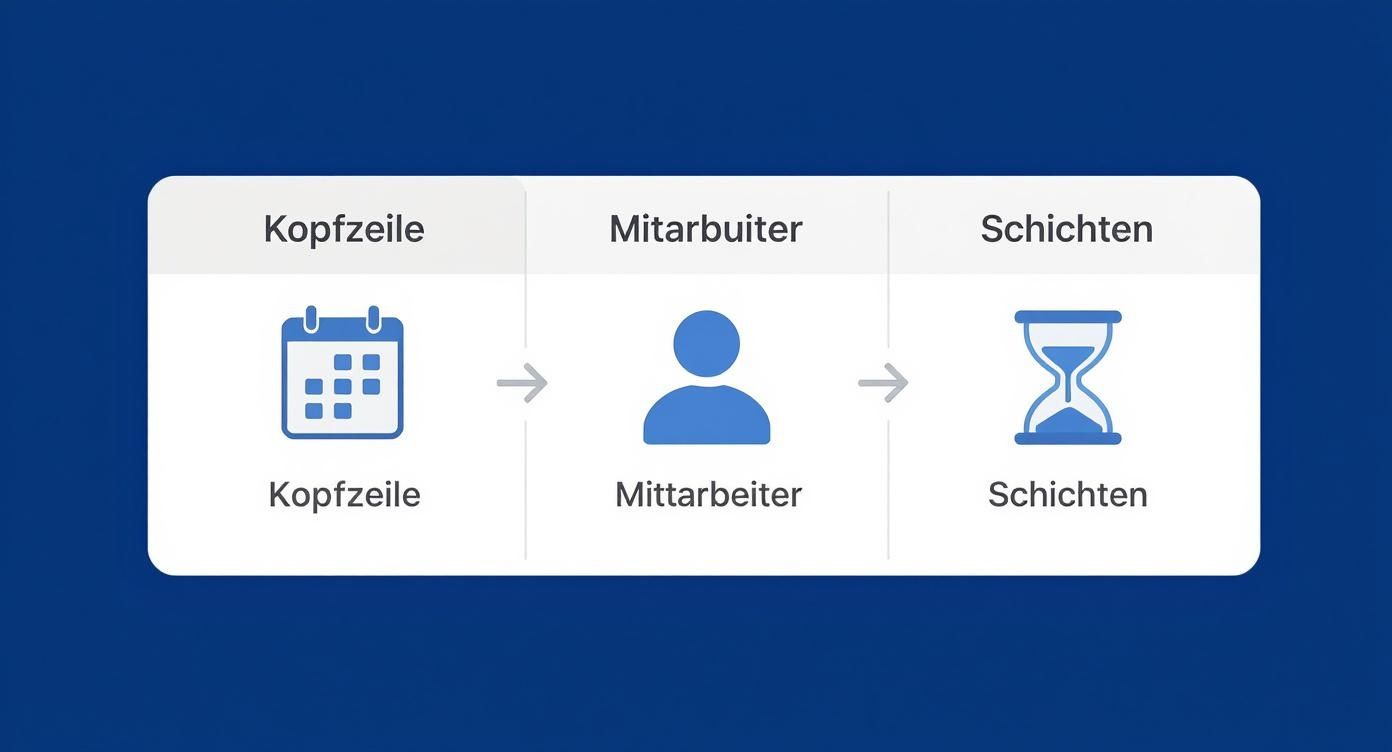
A logical structure with a clear header, cleanly separated employee lines and consistent shift abbreviations is really the be-all and end-all. Without this order, the best automations don't work.
Calculate working hours precisely
Simply counting layers is a good start. But the real magic happens when Excel also adds up the work hours for you. To do this, you combine yours COUNTIF functionsent with that VLOOKUP.
To do this, you first create a small auxiliary table - your legend, so to speak. There you assign the corresponding number of hours to each shift code. An example:
- F = 8 hours
- S = 8 hours
- N = 8 hours
Assume this legend is in cell range A40:B42. The formula for calculating the total hours for an employee (whose shifts are in C2:AG2) could then look like this:
=(ZÄHLENWENN(C2:AG2;"F")*SVERWEIS("F";$A$40:$B$42;2;FALSCH)) + (ZÄHLENWENN(C2:AG2;"S")*SVERWEIS("S";$A$40:$B$42;2;FALSCH))
What's happening here? The formula first counts all early shifts, then gets the appropriate hourly value (the 8) from your legend and multiplies both. She does the same for the late shifts and adds everything up at the end.
Map recurring shift rhythms
In many companies there are fixed shift cycles - a classic is the rhythm "four early shifts, then two days off". The creation of such shift plans in Excel has long been established as standard practice in Switzerland. With features like that REST functionyou can have such recurring patterns mapped automatically. This saves a lot of time and allows you to quickly go through different planning variants.
Practical tip:Set up a column for the contractual «Target hours»and one for the calculated ones «Actual hours». With a simple subtraction (
=Ist-Stunden - Soll-Stunden) you can see at a glance who has accumulated overtime or minus hours. This is worth its weight in gold for the monthly billing and the connection to yours Time tracking.
These automated calculations are the heart of any good Excel shift schedule. They give you back the control and overview you need for fair and accurate workforce planning. In the next step we will make the plan even clearer with some color.
More overview through conditional formatting
A shift plan full of letters and numbers can quickly become confusing and overwhelming. Your brain has to decode each abbreviation individually - this is not only tiring, but also opens the door to mistakes. This is exactly where it comes in conditional formattingfrom Excel. It is a powerful tool to visually enhance your plan and make it intuitively readable with just a few clicks.
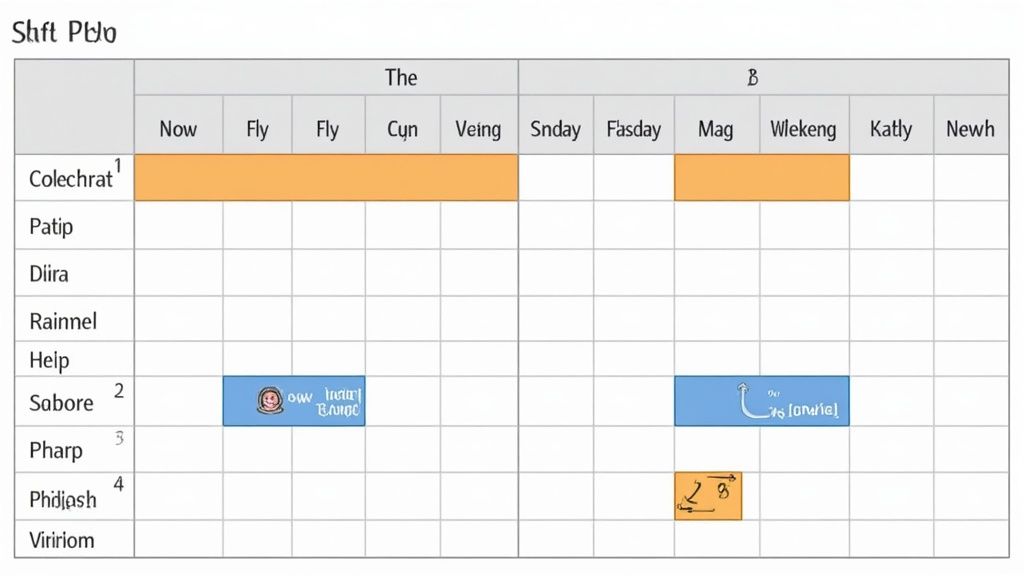
Imagine if your shift schedule revealed the most important information at a glance, without having to wade through a desert of data. This isn't rocket science, but the result of a few clever visual rules.
Automatically color shifts and absences
The most common application is probably the color coding of the different layers. This not only helps you with planning, but also helps your team grasp the plan quickly. You can easily define rules that Excel will then automatically apply for you.
To do this, mark the entire planning area of your table. In the menu ribbon, go to “Start” -> “Conditional Formatting” -> “Rules for highlighting cells” -> “Text content”.
Now you set your rules:
- Rule 1:Enter the abbreviation for «Format cells that contain the following text» «F»for the morning shift. Choose an appropriate fill color, such as a light yellow.
- Rule 2:Repeat for the abbreviation «S»(late layer) and choose a different color, such as a light blue.
- Rule 3:Finally, do the same for «N»(Night Shift) with a third color, such as a subtle gray.
You can of course also visually highlight absences using the same principle. Especially in the care sector, it is absolutely crucial to immediately see where staff are missing.
Let's take a practical example: You create a rule that colors all cells with the abbreviation "U" for vacation green and all cells with "K" for illness in a conspicuous red. This way you can see at a glance where you may need to organize replacements and keep a much better eye on staffing levels.
Set up warnings about scheduling errors
But conditional formatting can do much more than just look pretty. It can actively warn you about mistakes. One of the most common blunders is accidental double occupancy or disregard for rest periods.
This is where a formula-based rule comes into play. Let's say you want to make sure that no one has to take an early shift the next day after a night shift. To do this, you create a rule that checks whether there is an “F” in a cell while an “N” is entered in the cell directly to the left. If this condition applies, Excel colors the cell red - an unmistakable signal of a potential violation of rest periods.
Such visual aids are not a gimmick. They are proven to reduce errors, greatly improve the readability of the plan and significantly simplify communication within the team. The plan simply becomes more intuitive and immediately understandable for everyone involved.
Shift schedule Excel template - Free templates & best practices
Especially at the beginning or for recurring standard scenarios, you save money with a ready-made one Shift plan Excel templatean enormous amount of time. Instead of starting from scratch, you already have a well-thought-out structure with ready-made formulas, conditional formatting and clear layout.
What makes a good Excel template
Not every template is equally good. Pay attention to these quality features:
- Automatic date generation— you only enter month/year, the rest is calculated
- Built-in formulasfor hour counting and target/actual comparison
- Conditional formattingfor shifts, weekends and holidays
- Swiss standards— public holidays, SECO-compliant rest times, German language
- Print optimization— the plan fits neatly on A4 landscape format
- Customizable— no protected cells, full flexibility
Typical template scenarios for Switzerland
| Industry | Specifics of the template | Typical layer models |
|---|---|---|
| Gastro/hotel industry | Weekend highlighting, split shifts, peak highlighting | Early/Late, Continuous |
| Healthcare | 24/7 coverage, night shift rotation, quiet time alerts | 3-layer (F/S/N) |
| Retail | Opening hours coverage, peak times, part-time models | Early/late, flextime |
| Production | Continuous shifts, alternating rhythms, break tracking | 4-layer model, full run |
| Event staff | Project-based, flexible working hours, qualification matrix | Day shifts, on-demand |
How to get the most out of a template
- Copy the templatefor each month in a new spreadsheet (do not overwrite!)
- Pass month/yearin the header — date formulas update automatically
- Add employee list— add new people or remove eliminated ones
- Define your layers— adjust abbreviations and times (F/S/N or your own)
- Plan the shifts— enter shift abbreviations in the cells
- Check calculations— control totals, overtime, rest times
- Export for notice— print or save as PDF
Insider tip:Create one Master templatewith your team, shift models and legends - then you simply copy these every month. This saves 90% of setup time and prevents errors.
Import & Export - Connect Excel shift plan with other tools
Many modern HR tools and time recording systems support Excel importfor target shifts. This means:
- You plan in Excel (where you have full control)
- Export as CSV or XLSX
- Import into your time tracking tool (e.g. job.rocks time tracking)
- The target/actual comparison runs automatically
It also works the other way around: recorded working times from the tool Export [[[JR262]]] back to ExcelExport back to Excelfor monthly statements or analysis. For many SMEs, this hybrid solution is the perfect middle ground between flexibility and automation.
You can find out more about import/export in Microsoft Support: Import or export CSV files.
Make the shift plan ready for printing
A digital plan is one thing, but in practice a printed version is often needed to be posted in the break room. And anyone who has ever tried to print a wide Excel shift plan knows the misery: important columns are cut off or the plan is spread over a dozen pages in an illegible manner.
But that doesn't have to be the case. With a few targeted clicks, you can put your plan neatly and clearly on a single A4 sheet.
Adjust print area and page layout
First, you tell Excel exactly what you want to print. Mark the entire area of your shift plan - from the first to the last cell. Then go to the menu «Page layout»and choose «Print area» > «Set print area».
Since a monthly plan is almost always wider than it is tall, landscape format is the logical choice.
- Click below «Page layout». «Alignment»and choose «Landscape format».
- Right next to it you will find «Scaling»the decisive option «Customize». Put here «1 page wide»and «1 page up». Excel now automatically compresses the content so that it fits perfectly on one page.
Repeat headers and employee names on each page
If your plan is long and spans several pages, there is nothing more annoying than losing track. Which column belongs to which day? Which employee is in this line?
The solution is simple: the header with the days of the week and the first column with the names must be repeated on every single page.
Go to it «Page Layout» > «Print Title».
- In the field «Repeat lines above»click on the small arrow and mark the lines with the date and day of the week.
- In the field «Repeat columns on the left»do the same for the column with the names of your employees.
In Switzerland, shift schedules are subject to strict labor law requirements. A standardized format, such as Excel, helps you create transparent and comprehensible plans that meet the requirements of the State Secretariat for Economic Affairs (SECO). More about the You can find legal requirements for shift schedules at seco.admin.ch.
Practical tip:Add a footer via «Insert» > «Header & Footer». Enter the current date and a version number there, for example «Version 1.1 from March 24th, 2026». This avoids confusion if you need to adjust and reprint the plan at short notice. So everyone knows which notice is the most current.
Free templates and when a tool is better
Of course, you don't have to reinvent the wheel every time you want to set up a shift schedule in Excel. A ready-made template is worth its weight in gold, especially when starting out. It provides you with the complete basic structure including tables, formulas and decent formatting - a real boost for getting started.
Such free Excel templates are a blessing, especially for smaller companies in Switzerland. This allows you to create monthly plans in no time. You can easily adapt shift names, working hours or absences such as holidays and illness to suit your needs. The trend is clear: more and more companies are leaving the paperwork behind and at least switching to Excel.
When does Excel reach its limits?
As practical as Excel may be, when the company is of a certain size or with more complex requirements, the tinkering quickly becomes tedious and error-prone. If you notice that you are spending more time troubleshooting formulas or manually adding vacation requests than actually planning, then the alarm bells are ringing.
These are the typical signs that it's time for a change:
- The team is growing:From 15 to 20 employees, manual coordination in Excel quickly becomes a confusing puzzle.
- The requirements are becoming more complex:You suddenly have to keep an eye on qualifications, different locations or legal rest periods. This is a real pain in Excel.
- You want to do more than just plan:The time recording should be linked directly to the plan and the data should be prepared cleanly for payroll accounting.
- The communication chaos begins:The constant sending of Excel files back and forth inevitably leads to no one knowing which version is the current one.
If these points apply to you, a specialized tool is a much better choice. It often provides one Employee app, automatic notifications of plan changes and legally compliant documentation of working hours.
Professional software takes many of these steps off your hands and massively reduces the administrative effort. If you want to get an overview of the different options, take a look at our guide. There you will find a detailed one Overview of personnel scheduling software for Swiss SMEs.
By the way: Structured planning aids are not only useful for shift plans. A similar approach can also help in other areas, for example with a professional editorial plan template.
The most frequently asked questions about the Excel shift plan (FAQ)
In practice, the same questions always arise when planning shifts with Excel. Here are the answers right out of the box - short and sweet so that you can avoid typical stumbling blocks from the outset.
How do I create an Excel shift plan automatically?
With date formulas (=DATUM(Jahr;Monat;Tag)and=TEXT(Datum;"TT")), conditional formatting for weekends and a well-structured template, you create a dynamic plan that adapts automatically. Combine that with ZÄHLENWENNfor shift counts and SVERWEISfor hourly calculations – Excel calculates everything for you.
Which formula do I need for an automatic shift plan?
The most important formulas are:
=DATUM(2026;3;SPALTE()-2)for automatic days=TEXT(Datum;"TT")for weekdays=ZÄHLENWENN(Bereich;"F")for shift counts=WOCHENTAG(Datum;2)>=6for weekend markings
Can Excel create shift plans fully automatically?
Yes, with VBA macros you can even have complex shift cycles generated fully automatically. For most companies, however, the standard formulas and conditional formatting are sufficient to have a largely automated plan. The use of macros is only worthwhile for very complex rotations or optimization requirements.
How do I save time when creating shift plans?
Create a master template with all formulas, conditional formatting and legends. You copy this every month and only adjust the month/year and individual absences. This saves you 80% of setup time and avoids errors.
What are the best Excel templates for shift schedules?
Look for templates that already include hourly calculation formulas, conditional formatting for shifts, and a clear structure. Make sure that the template is adapted to Swiss standards (holiday regulations, SECO requirements). Most templates are available for free, but be sure to customize them to your specific needs.
How do I deal with short-term changes?
This is the Achilles heel of every Excel plan. If something changes spontaneously, a clear procedure has proven itself in practice: Always save a new version of the file (for example «Schichtplan_KW44_V2.xlsx») and make the changes there only.
It's best to add a separate column for notes. There you briefly document who swapped with whom, when and why. This means that every adjustment remains crystal clear, even weeks later.
Can I just send the shift schedule by email?
Be careful, there is a data protection trap lurking here! A shift schedule is full of personal data and sending it via email is therefore sensitive. If there is no other option, you must make absolutely sure that the distribution list is correct and that only the people directly affected receive the email.
It is better to either protect the plan with a password or store it on a secured company drive to which only authorized people have access.
Important note on data protection:Real names in the shift schedule are only unproblematic if you have the consent of your employees. You are on the safe side with anonymized plans that use personnel numbers instead of names. It is best to anchor this approach in a company agreement in order to be legally unassailable.
Which formula helps distribute weekend shifts fairly?
Here it is too ZÄHLENWENNfunction your best friend. Set up a small table in which you count how often each person is assigned on a Saturday or Sunday.
This way you can see at a glance who may have had to work too often recently, and you can easily ensure fair compensation in the following month.
How quickly can I change a plan?
By law, a roster must usually be provided at least four days in advancewill be announced. This gives your team the necessary planning security.
Shorter-term changes are only permitted in absolute emergencies or with the express consent of the person concerned. However, out of pure fairness and respect for the team, a longer lead time is always the better choice.
How do I connect Excel with professional time tracking?
Many modern time tracking tools offer Excel import/export functions. You can do your shift planning in Excel and import the target data directly into your time recording system. You then export the recorded actual times back to Excel for the target/actual comparison. Even better: professional ones Roster Toolscombine both in one solution.
Are there free shift plan Excel templates for Switzerland?
Yes, many providers provide free templates. Make sure they contain Swiss holidays, German language and SECO-compliant structures. However, the best template is always the one that you have adapted to your needs - use existing templates as a starting point and expand on them.
Can I import my Excel shift schedule into Microsoft Teams or Shifts?
Yes, Microsoft Teams offers with the Shift appa native integration. You can import shift plans from Excel (CSV format). More on this in Microsoft Support: Importing a schedule from Excel into Shifts. This is particularly practical if your team already uses Teams and you want to manage target times centrally.
Is managing in Excel slowly becoming too error-prone and cumbersome for you? If you are looking for a professional, GDPR-compliant solution that really does the work for you, this is job.rocksthe answer. Automate your entire deployment planning – from availability queries to digital time recording to payroll.
Try it now and experience how easy workforce management can be: https://job.rocks