
Your Perfect Work Schedule Excel Template for Download
A solid work schedule Excel template is often the first and best step to bring order back to personnel planning. Before investing in expensive software, a well-designed Excel spreadsheet can be a surprisingly powerful – and free – foundation. Learn how to create a functional work schedule with Excel…
A solid work schedule Excel template is often the first and best step to bring order back to personnel planning. Before investing in expensive software, a well-designed Excel spreadsheet can be a surprisingly powerful – and free – foundation.
How to Create a Functional Work Schedule with Excel
A good work schedule is more than just a list of names and times. It is your central tool to keep track, plan fairly, and comply with all legal requirements. Starting with Excel is often ideal because you can tailor the system exactly to your needs without having to learn complex software first.
The goal? To build a template you can reuse repeatedly and that grows with your team. We focus on the elements every schedule really needs and create a clear, understandable structure.
The Basic Structure of Your Schedule
Every effective work schedule in Excel begins with a simple but logical layout. This foundation ensures everything stays clear and you can quickly find your way around.
Build the framework like this:
- Columns for employee names: On the far left, in the first column (Column A), enter your team members' names.
- Rows for the days: The columns next to it (B, C, D, etc.) represent the individual days of the month or week. Each day gets its own column.
- Cells for shifts: Where the employee row and day column intersect, enter the respective shift. Simple, right?
This setup is the basis for everything that follows. It is intuitive and lets you see at a glance who is working when.
Essential Elements for More Clarity
A plain table quickly becomes confusing. That’s why you now add a few elements that make your schedule immediately clearer. These include a dynamic date display that automatically adjusts to the selected month and color coding for different shift types.
A well-structured work schedule not only saves you work but also creates transparency and fairness within the team. Imagine marking early shifts green, late shifts blue, and night shifts dark gray. This way, you immediately see if shift changes suit your people and avoid planning errors.
With these first steps, you lay the foundation for a schedule that really helps you in everyday life. Learn more about how to take your personnel planning with Excel to the next level.
Building Your Work Schedule Excel Template Practically
Now we get practical. A simple list of names and shifts is not enough – your goal is a work schedule Excel template that truly supports you and thinks along during coordination. Together, we build a template that cleverly combines availabilities, shift types, and automatic calculations.
The structure follows a logical sequence: first, we create the basic framework, then we include the personnel, and finally, we define the shifts with their specifics.
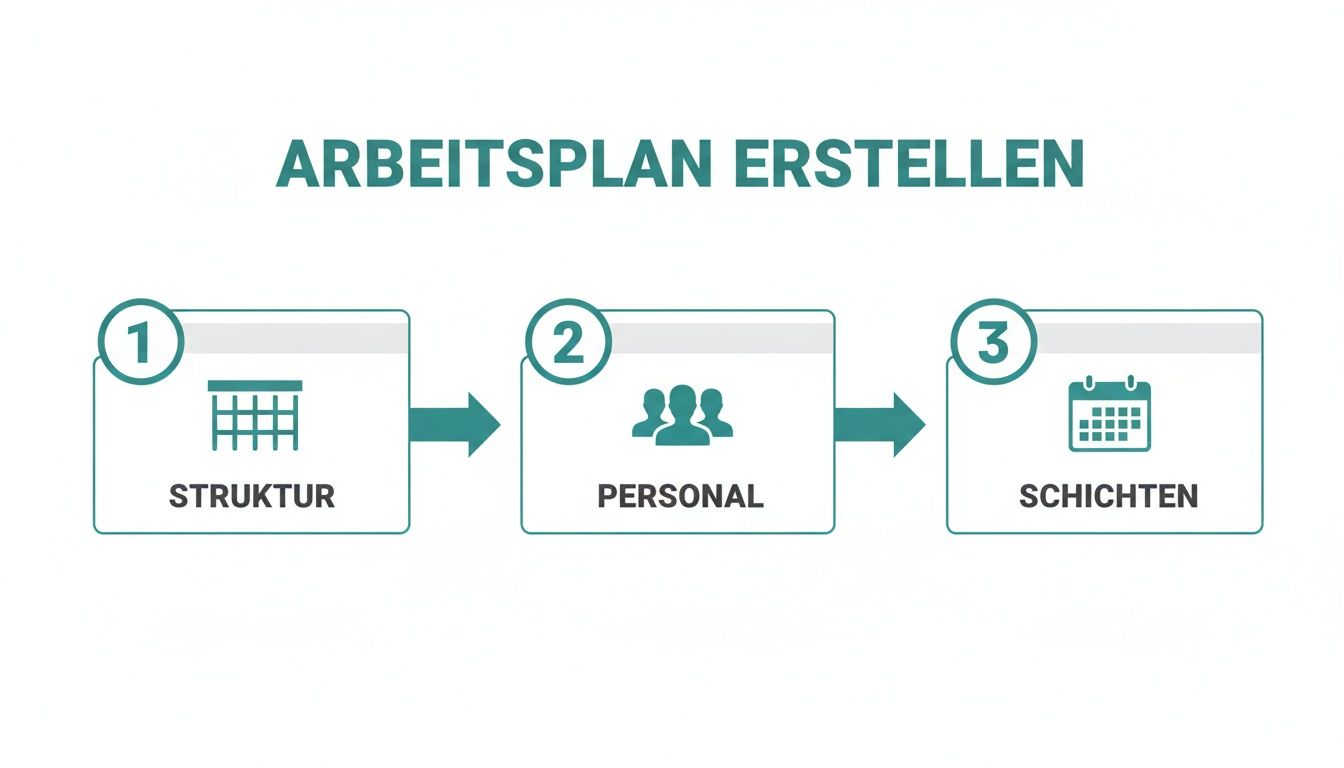
This simple graphic sums it up: a thoughtful sequence is key to ending up with a functional and, above all, clear template.
Systematically Recording Availabilities
One of the biggest challenges in everyday life is managing the team's wishes and absences cleanly. Instead of paper chaos and countless messages, I have found a simple trick effective: create a separate worksheet in your Excel file just for availabilities.
Here your team can independently enter:
- Preferred working days: The days they especially want to work.
- Absences: Planned vacations, doctor appointments, or other private commitments.
- General unavailability: Fixed days when they cannot work as a rule.
The advantage? Your actual work schedule stays clean and tidy. When planning, you simply glance at the second sheet and transfer the info without turning your main schedule into a confusing wall of notes.
Defining and Visualizing Shift Types
Give your shifts clear names and especially short abbreviations. This creates a uniform language within the team and prevents misunderstandings from the start.
A proven system for shift abbreviations might look like this:
- E for Early shift (e.g., 06:00 – 14:00)
- L for Late shift (e.g., 14:00 – 22:00)
- N for Night shift (e.g., 22:00 – 06:00)
- V for Vacation
- S for Sick
Now comes the visual trick: with conditional formatting in Excel, you automatically assign each abbreviation its own color. Go to "Conditional Formatting" → "Highlight Cell Rules" → "Text that Contains." There you set that all cells with "E" turn green and all with "L" turn blue. This makes your schedule instantly readable.
A color-coded schedule is worth its weight in gold. You immediately see where gaps in staffing exist or if shift changes make sense for employees. Patterns and potential problems jump out without having to read every single cell laboriously.
Automatically Calculating Hours
Manually adding up working hours is not only annoying but also a huge source of errors. Let Excel do this work for you! With the COUNTIF formula, you can automatically determine the number of shifts per employee and week.
The formula COUNTIF(B2:H2,"E"), for example, counts how often the abbreviation "E" appears in the range from B2 to H2 (i.e., in the weekly row of an employee). Multiply this result by the duration of a shift (e.g., 8 hours), and you have the exact weekly hours.
This automation saves an incredible amount of time. In Switzerland, SMEs spend on average 4.5 to 6 hours per week manually creating shift schedules. Although the share of companies using Excel dropped from 67% in 2020 to around 42% in 2025, the manual effort remains high for many.
Effective work planning requires not only time but also clear task definitions. A good way to structure this is, for example, a detailed caretaker duties specification template that shows how to document responsibilities clearly.
Smart Formulas and Checks for Your Schedule
A simple table is often not enough to create a truly good work schedule. Improve your work schedule Excel template with some intelligent formulas and automatic checks. They take the tedious thinking and control work off your hands and turn the simple list into a thinking tool.
Let's be honest: manual errors are human. But in shift schedules, they can quickly become costly. The average error rate in Excel schedules is about 8.3% per planning cycle. Often, these careless mistakes lead to violations of legal rest periods or understaffed shifts.
Especially in cantons with strict labour market controls like Geneva or Vaud, 34% of inspected companies were found to have violations. If you are interested in the exact regulations, you can find all details in the official shift schedule guidelines from SECO.
Automated Check of Rest Periods
One of the most common and sensitive errors is ignoring the legal rest period between two shifts. Imagine scheduling someone for the early shift right after they had a demanding night shift. With a simple IF function, Excel can warn you exactly about this.
Assuming cell C3 contains today's shift and B3 yesterday's, the formula might look like this:
=IF(OR(AND(C3="E",B3="N"),AND(C3="E",B3="L")),"Check rest period!","OK")
What does this formula do? It checks if an early shift ("E") directly follows a night shift ("N") or a late shift ("L"). If yes, Excel outputs the warning "Check rest period!" so such a critical combination doesn't slip through.
Automatically Insert Personnel Data with VLOOKUP
Stop typing hourly rates or qualifications manually for each employee in the schedule. This is not only tedious but also a huge source of errors. The VLOOKUP function (or its modern successor XLOOKUP) will be your best friend here.
The solution is simple:
- Create a separate worksheet, for example called "Personnel Master."
- List all employees there with their relevant data: name, hourly rate, qualification, and so on.
- In the work schedule, use a formula like
=VLOOKUP(A4,PersonnelMaster!A:C,2,FALSE)to automatically pull the correct hourly rate from your master data list.
The big advantage: you maintain all data centrally in one place. If something changes, you only update it in the personnel master, and the entire work schedule updates automatically. This saves time and ensures your calculations are always based on the latest values.
Avoid Input Errors with Data Validation
A small typo like "EaRly" instead of "E" can throw off all your automatic calculations. With Excel's data validation, you can easily prevent this.
Here’s how step-by-step:
- Select all cells where you want to enter shifts later.
- Go to the menu and click "Data" then "Data Validation."
- Choose "List" under "Allow."
- Enter your allowed shift abbreviations separated by semicolons in the "Source" field (e.g.,
E;L;N;V;S).
And that’s it. From now on, you can only select shifts from a dropdown menu in these cells. This guarantees clean data and ensures your formulas always work correctly. You can also use the average working days per month as a basis for your target hours calculation.
Data Protection and Legal Aspects in Excel Planning
As soon as you create a work schedule, you are working with personal data. This means you must comply with data protection laws. Your work schedule Excel template is more than just a table – it is a document containing sensitive information about your team.
Every name, shift, and vacation note is data that must be protected. Mishandling this can not only damage trust within the team but also lead to serious legal consequences.
Who May View the Work Schedule?
One of the most important questions you must ask yourself concerns access control. Not everyone in the company needs to know who works when or who is sick. The circle of people allowed to see the full schedule should be as small as possible.
Think carefully about who really needs this information for their work. Usually, these are:
- The direct supervisor who creates the schedule.
- The HR department for payroll.
- The affected employees themselves, ideally only for their own data.
An open posting in the break room is problematic nowadays. Especially when absences like "sick" or "doctor" are noted, these are particularly sensitive health data. Such information definitely has no place on a public wall.
A simple but effective step is password protection for your Excel file. Under "File" → "Info" → "Protect Workbook," you can set a password. This ensures that only authorized persons can open the file at all.
Handling Sensitive Data and Retention Periods
You must be especially careful with sensitive data. Sick notes are a classic example. The exact diagnosis has absolutely no place in the work schedule. A neutral abbreviation like "S" for sick is sufficient and does not reveal private health information.
Retention of schedules is also legally relevant. You must not keep work schedules indefinitely. They contain personal data and are subject to deletion obligations once they are no longer needed for the original purpose – organizing work and payroll. Define a clear period, for example, six months after the end of the planning period, and delete old files consistently afterward.
An important aspect is protecting sensitive data. Make sure your Excel planning complies with applicable data protection regulations. General information on the topic is also available on our page about data protection. If you want to dive deeper into planning legally safe, be sure to read our article on GDPR-compliant personnel planning.
When Your Excel Template Reaches Its Limits
A work schedule template in Excel is a great starting point. No question. It is flexible, free, and you can customize it down to the smallest detail to your processes. But eventually, it turns. The point is reached where the disadvantages outweigh the advantages and your Excel planning causes more problems than it solves.
You usually notice this because you feel like a pure administrator. You spend hours copying formulas, making manual corrections, and gathering requests from emails or WhatsApp messages. There is hardly any time left for your actual leadership tasks. Your Excel spreadsheet becomes a time sink.
Typical Signs You’ve Hit the Excel Limit
How do you recognize that your template has outlived its usefulness? Watch for these warning signs in your planning routine. If they accumulate, it’s high time to consider the next step.
- Your team grows: With five people, you can still keep track easily. But with 15, 20, or more employees, the same table quickly becomes an unwieldy data monster.
- Shift requests become more complex: Individual requests are no problem. But if employees regularly want to work only on certain days, at certain times, or not with certain colleagues, manual planning becomes an unsolvable puzzle.
- Error susceptibility increases: One wrong copy, one formula accidentally overwritten – and suddenly the hour balances or staffing are wrong. Finding such errors by hand is a nightmare and costs enormous time.
- Communication is chaotic: Changes to the schedule are passed on by word of mouth, email, or group chat. There is no central, binding version of the work schedule for everyone, which constantly leads to misunderstandings.
If the administrative effort for your schedule creation eats up several hours every week, that is a clear sign. This time is missing for strategic tasks, leading your people, and developing your business.
Process Comparison: Excel vs. Software
Switching to specialized software like job.rocks does not just mean using different technology. It fundamentally changes how you plan and collaborate with your team. Let’s compare typical processes directly.
Collecting Availabilities
- With Excel: You collect wishes and absences tediously by email, chat, or verbally. Then you transfer everything manually into a separate list or directly into the table. This is not only time-consuming but also extremely error-prone.
- With Software: Your employees enter their availabilities and wishes directly in their app. You see immediately in the planning view who can work when – without manual typing.
Shift Planning and Hour Calculation
- With Excel: You enter abbreviations for shifts, copy formulas for hour calculation, and manually check if weekly hours fit for each person. Every change means starting over.
- With Software: You drag and drop shifts onto the right employees. The software automatically calculates hours, bonuses, and overtime in real time. Correct and effortless.
Communication About Changes
- With Excel: You save a new PDF version, email it to everyone, and hope everyone has the current version. Confusion and errors are preprogrammed.
- With Software: You change a shift, and affected employees immediately receive a push notification on their smartphone. Everyone always has the same, up-to-date status everywhere.
Excel is undoubtedly a powerful tool, but it was never designed for dynamic and collaborative personnel planning. Once your team reaches a certain size and requirements become more complex, a specialized solution is no longer a luxury. It becomes a necessity for smooth operations.
Typical Practical Questions About the Work Schedule Template
Anyone working with a work schedule Excel template sooner or later encounters the same hurdles. Here I have collected the most frequent questions for you and formulated practical answers so you can elegantly avoid these small stumbling blocks.
How Can I Automatically Account for Public Holidays?
A classic. Many mark public holidays tediously by hand, but this can also be done automatically. Simply create a separate worksheet where you list all statutory holidays of the year vertically.
In your actual schedule, use conditional formatting together with the VLOOKUP function. The rule then checks for each date whether it appears in your holiday list. If so, Excel automatically colors the cell – for example, gray. This way, you see at a glance that you don’t have to plan as usual on that day.
How Do I Ensure Weekly Hours Are Calculated Correctly?
Automatic calculation of weekly hours is probably the biggest time saver you can eliminate. First, define how many hours each shift type represents (e.g., early shift = 8 hours, part shift = 4 hours). It’s best to store these values in a small helper table.
With a formula combining COUNTIF and SUMPRODUCT, you then calculate total hours per employee and week. The formula counts how often each shift abbreviation occurs in the week, multiplies this number by the stored hours, and sums it all up.
My practical tip: Set up an additional column that compares calculated actual hours with contractual target hours. A simple conditional formatting then immediately highlights who has overtime or undertime. This way, you always have working time accounts under control without manual recalculation.
Does the Excel Template Work on Mobile?
Basically yes. With the mobile Excel app, you can access your work schedules on the go and theoretically even edit them. In practice, however, this is often fiddly. Display on a small screen quickly becomes confusing, and editing formulas or moving cells is far from comfortable.
For a quick check or a small change, it might suffice. But actual planning, i.e., creating and adjusting the schedule, should definitely be done on a desktop. Anything else costs unnecessary nerves.
What Is the Best Way to Share the Schedule with the Team?
Please do yourself a favour and avoid constantly sending new versions of the Excel file by email. That’s a sure path to chaos. Eventually, no one knows which file is current, and errors are preprogrammed.
A much cleaner way is to store the file on a shared cloud storage like OneDrive or Google Drive. There you simply give your team read access. This way, everyone can view the current schedule anytime, but only you (or other authorized persons) can make changes. This creates clarity and prevents uncontrolled versions.
Are you at a point where Excel’s limits slow you down more than they help? If you’re ready to take your personnel planning to the next level, see how job.rocks relieves you of administrative burden with automated planning, an employee app, and legally compliant time tracking. Schedule your free demo now at https://job.rocks and see for yourself how easy workforce management can be.