
Personnel planning with Excel made easy
A smart Excel setup is often the most direct and affordable way to plan staff assignments, shifts, absences and working hours without immediately investing in specialist software.
A cleverly constructed one Personnel planning with Excel is often the most direct and cheapest way to regulate the deployment of your employees. This allows you to create a flexible basis for shifts, absences and working hours without having to invest in expensive special software.
Why Excel is often just right for personnel planning
Before we dive into the world of formulas and tables, a fundamental question arises: Why should you use Excel at all? Excel is still a pragmatic solution, especially for many small and medium-sized companies (SMEs) in Switzerland.
There are three simple but strong arguments behind this:
- No extra costs: Excel is already available in most companies as part of the Microsoft Office package. So there are no additional acquisition or licensing costs.
- High flexibility: Every company works differently. With Excel you can tailor your planning exactly to your processes instead of having to submit to the rigid specifications of software.
- Quick training: Almost everyone in the team has worked with Excel before. Your self-created template is usually much easier to understand for your colleagues than completely new software.
Where Excel shines in practice
Imagine a small manufacturing company whose order situation fluctuates strongly seasonally. Suddenly many more layers have to be covered in summer than in winter. A flexible Excel list allows the planner to quickly design new shift models and adjust personnel requirements on a weekly basis.
Or think of an agency that has to react quickly to new customer projects. With a clean Excel structure that also records the skills of the employees, the project management can put together the right team and check availability at lightning speed.
The program's well-known logo represents precisely this versatility.
It symbolizes the massive adoption and familiar interface that makes Excel such an accessible workforce planning tool.
A powerful tool, not a stopgap solution
It is no coincidence that Excel is so popular. Many SMEs in Switzerland consciously rely on well-thought-out Excel templates. A 2023 cross-industry survey showed that over 60% of SMEs rely on the table for your personnel deployment planning. Find out more about how shift schedules are implemented in practice.
A cleverly structured Excel file is much more than just a temporary solution. It is a reliable and powerful basis for your personnel decisions - provided you know how to build and use it correctly.
Build the foundation of your planning correctly
A clean and well thought-out structure is the be-all and end-all of your entire business Personnel planning with Excel. Before you write a single formula, you need to lay a solid foundation of spreadsheets. Here we lay the foundation together so that your data maintenance later becomes child's play.
Imagine your Excel file like a building. Each spreadsheet is a floor with a clear function. If you mix everything in a single sheet, the system will quickly collapse. We therefore cleanly separate the data according to their purpose.
The big advantage of this division: you only have to maintain information in one place. If you change an employee's weekly hours in the master data list, this will immediately be reflected correctly in all connected plans. This saves a lot of time and prevents careless errors.
The three central tables
For personnel planning to work, you need three essential building blocks at the beginning. They form the heart of your system.
- Employee list: This is your central database. Here you record all the master data of your team members, for example name, personnel number, department, contractual weekly hours and special qualifications such as “first aider” or “knowledge of a foreign language”.
- Absences: In this sheet you collect all planned and unplanned absences centrally. Each entry has a start and end date, the name of the employee and a reason (e.g. vacation, illness, further training).
- Annual calendar/holidays: Here you list all the public holidays relevant to your company - don't forget the cantonal specifics! This sheet later ensures that Excel calculates the working days correctly.
The following graphic shows why Excel is still such a strong basis for planning despite many modern tools.
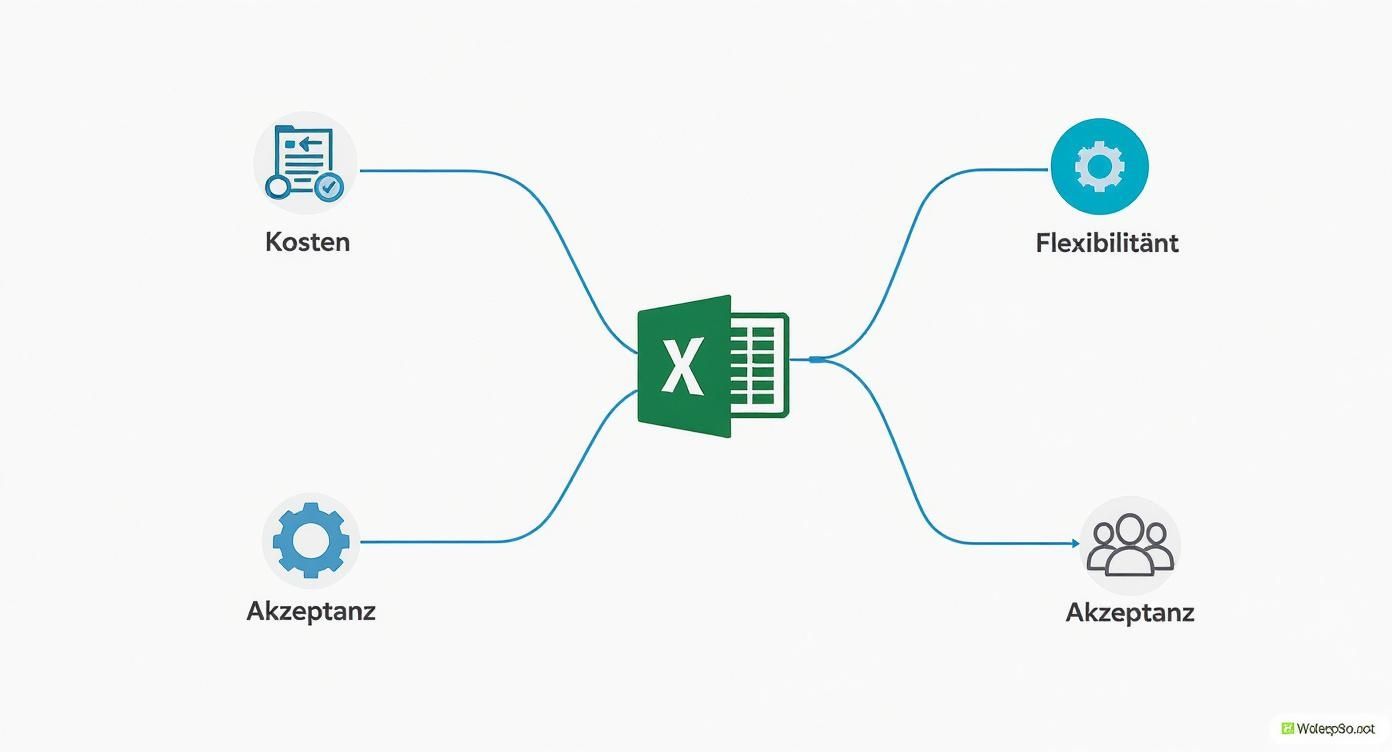
You can see straight away: The combination of low barriers to entry, enormous adaptability and broad acceptance within the team makes Excel a powerful tool.
Structure and name data intelligently
So that your tables don't just remain collections of data, but can "talk" to each other, we format them as "smart tables". This is an absolute game changer. To do this, simply mark your data area and press Ctrl + T (or Cmd + T on Mac).
This simple step gives your data superpowers. Formulas automatically apply to the entire column, new rows are immediately included in all calculations and the layout is much clearer. Trust me, you don't want to miss this!
Another pro tip is to use named areas. Instead of using cryptic cell references like in your formulas Feiertage!A2:A25 To use it, simply give this area a meaningful name, for example Alle_Feiertage.
This makes your formulas immediately readable and understandable. A formula like =NETTOARBEITSTAGE(A1;B1;Alle_Feiertage) It's almost self-explanatory. This makes maintaining your file months later much easier.
Here is a proven structure for building your workbook.
Recommended structure for your Excel workbook
This overview shows you the spreadsheets and their purpose for functioning personnel planning.
| Spreadsheet | Purpose | Important columns |
|---|---|---|
| Employee list | Central recording of all personnel data | Personnel ID, name, department, contract hours, qualification |
| Absences | Management of vacation, sickness, etc. | Personnel ID, start date, end date, absence type |
| Annual calendar | Definition of days off | Date, holiday name, canton |
| Shift schedule | The actual operational planning | Date, Employee Name, Shift Code, Scheduled Hours |
With these cleanly divided and intelligently formatted tables, you have created a robust data model. All later steps, from the formulas to the visual preparation in the shift plan, are built on this solid foundation. Now you're ready to bring this structure to life with dynamic formulas.
The most important Excel formulas for your operational planning
Now it's time to get down to business. A clean data structure is half the battle, but only with the right formulas will your static list become a dynamic planning tool that thinks for you. They not only take over the recurring, annoying tasks for you, but also check conditions in the background and help you avoid classic planning mistakes from the outset.
We will now look at the formulas that are required for a solid Personnel planning with Excel are indispensable. For each function there is a practical example from a fictitious shift plan so that you can immediately see the benefits and install it directly in your own home.
Add up hours with SUMIF
The one question that always comes up in operational planning: “How many hours have I already planned for employee X this week?” SUMMEWENNS is the perfect answer to that. The function only adds values if one or more conditions you define apply.
Imagine you have a shift schedule for March. Column A contains the names of your people, column H contains the daily scheduled hours. You now want to quickly see in a small overview how many hours “Anna Meier” was allocated throughout the month.
The formula for this looks like this:=SUMMEWENNS(Schichtplan!H:H; Schichtplan!A:A; "Anna Meier")
Schichtplan!H:His the area with the hours to be added together.Schichtplan!A:Ais the area in which the name is searched."Anna Meier"is the condition – i.e. the name that has to be found.
This way you can easily keep an eye on each team member's target hours and prevent unfair over- or under-planning.
Retrieve employee data automatically with INDEX and COMPARISON
You used to have that SVERWEIS used, but the combination of INDEX andVERGLEICHis simply more flexible and much less error-prone. For example, you can automatically drag an employee's department or special qualifications from your master data sheet into the current shift plan without having to copy everything by hand.
Let's assume you select the name "Peter Muster" from a drop-down menu in cell A5 in the shift plan. His department should immediately appear in the cell next to it (B5). You maintain the master data for this on a separate spreadsheet called “Employees”.
The formula in cell B5 would be:=INDEX(Mitarbeiter!B:B; VERGLEICH(A5; Mitarbeiter!A:A; 0))
VERGLEICH(A5; Mitarbeiter!A:A; 0)searches for the name from your selection (A5) in the name column of the employee list and returns the exact line number.INDEX(Mitarbeiter!B:B; ...)grabs this line number and returns the value from the department column (column B). Complete.
The big advantage: This method works completely independently of the column order. A must for anyone who wants to build clean and automated plans.
Check conditions with the IF function
The WENN-Function is your logical workhorse. It checks whether a condition is true or false and returns a different value depending on the result. This is worth its weight in gold when it comes to checking whether an employee has the necessary qualifications for a particular shift.
A classic example: For the “late shift cash register” you need the “cash account responsibility” qualification. You have entered the employee and the shift in the shift plan. The qualifications are in your employee list.
You could set up a helper column to check this for you:=WENN(INDEX(Mitarbeiter!C:C; VERGLEICH(A5; Mitarbeiter!A:A; 0))="Kassenverantwortung"; "OK"; "Qualifikation fehlt!")
The formula catches up first INDEX/VERGLEICH the qualification of the person from the master data. Then check WENNwhether it says “cash responsibility” there. If so, an inconspicuous “OK” appears. If not, you will get a clear warning. A simple but incredibly powerful early warning system against bad planning.
In Swiss companies, determining personnel requirements using Excel is a component of strategic planning. Data from 2023 shows that around 45% of companies rely on Excel spreadsheets to forecast their quantitative and qualitative staffing needs. Here you can find out more about calculating personnel requirements.
Calculate available working days correctly with NETWORKDAYS
How many working days does the next month really have after deducting holidays and weekends? This question answers you NETTOARBEITSTAGE. The function calculates the number of working days between two dates and automatically excludes weekends.
The best part: You can give her her own list of holidays. This is a huge advantage, especially for Switzerland with its many cantonal holidays.
You want to calculate the available working days for April 2024 in the canton of Zurich. The start date is in A1 (01.04.2024), the end date in B1 (30.04.2024). You have your list of Zurich public holidays in a named area called Feiertage_ZH saved.
The formula is very simple:=NETTOARBEITSTAGE(A1; B1; Feiertage_ZH)
Excel now counts all Mondays through Fridays in this period and also subtracts all days that are in your holiday list. The result is the exact number of days for which you have to plan staff - a great relief for any capacity planning.
With these four formula types you already have a powerful tool at your fingertips to... Personnel planning with Excel to take it to the next level. They automate routine tasks, reduce errors and give you more time for the really important decisions.
Make the shift plan visually clear
A table full of numbers and letters is functional, but anything but intuitive in the heat of the moment. A plan that is not understandable at first glance quickly loses its value in everyday life. Now we breathe life into the pure data collection and turn it into an interactive cockpit that immediately shows you where things are going and where you need to intervene.
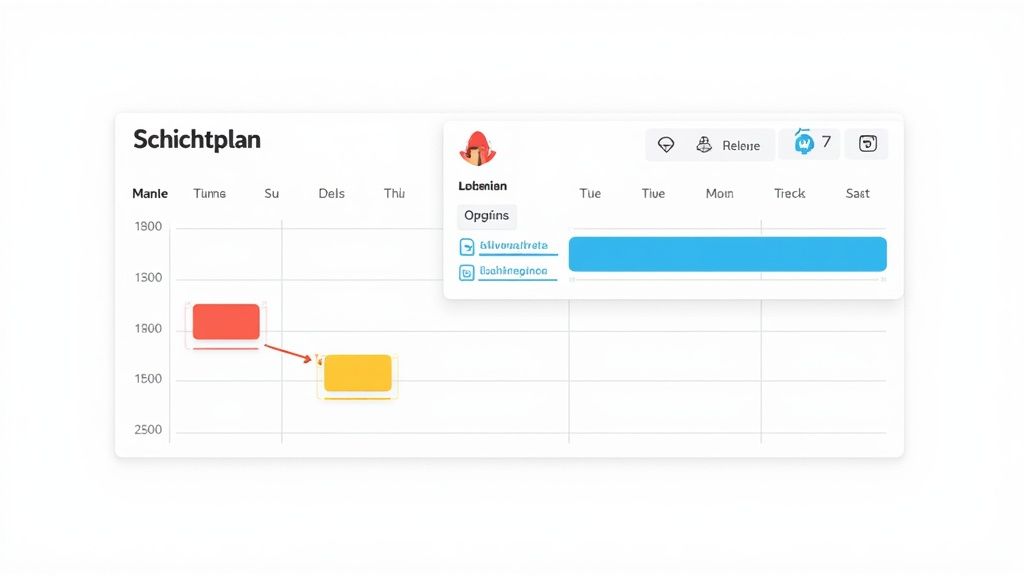
Our most important tool for this is conditional formatting. It's like an intelligent assistant that automatically adjusts the appearance of cells based on the rules you determine. This is how we build a visual early warning system directly into yours Personnel planning with Excel a.
Automatically color-code layers
The quickest and most effective step is color coding the layers. Our brains perceive colors much faster than text. A colorful plan is not only a visual enhancement, but above all an efficiency booster.
And this is how it works:
- Mark the entire planning area in which you will later enter the shift abbreviations (e.g. “F” for early, “S” for late).
- In the ribbon, navigate to «Home» → «Conditional formatting» → «Cell highlighting rules» → «Text content…».
- Enter the shift code in the first field, for example
F. - Select a suitable color on the right, such as “yellow fill with dark yellow text”, and confirm with “OK”.
- Repeat this for all of your layer types – “S” for blue, “N” for gray, and so on.
Voila! As soon as you enter an abbreviation, the cell will automatically be colored. This immediately creates a much better overview of the distribution of working hours.
Set up an early warning system for bottlenecks and overtime
But conditional formatting can do much more than just create colorful cells. We are now using them to make critical conditions immediately visible. You can create rules that make cells light up red if a shift is understaffed or an employee exceeds their contractual hourly target.
Imagine you have an auxiliary column that calculates an employee's weekly hourly account. With a simple rule, you can highlight in red all values that exceed the target.
- Mark the column with the total weekly hours.
- Go to «Conditional formatting» → «Cell highlighting rules» → «Greater than…».
- Enter the maximum target number of hours, for example
42. - Choose a red fill for formatting.
Now you can see at a glance who is at risk of accumulating too many hours and can proactively take countermeasures. The same thing works for shift staffing: A COUNTIF formula counts the employees per shift, and conditional formatting notifies you as soon as the target value is undershot.
Visual preparation turns reactive planning into proactive control. You see problems before they arise and can act instead of just reacting. This is the key to stress-free and fair deployment planning.
Error-free entries using drop-down lists
Typos are one of the most common sources of errors. Once you write “Peter Meier” and once “Peter Meyer” – your hourly calculations are no longer correct. This can be easily prevented with drop-down lists that you set up in Excel using “Data Validation”.
To create a drop-down list for employee names in the shift schedule:
- Click in the first cell where you want to select an employee name.
- Switch to the “Data” tab and click on “Data verification”.
- Under “Allow:” select the “List” option.
- Click in the “Source:” field and mark the column with all employee names in your master data sheet.
- Confirm with «OK» and drag the cell at the corner down to apply the dropdown function to the entire area.
From now on you can only select employees from a predefined list. This guarantees consistent writing and ensures that all your formulas work smoothly.
A small dashboard for a quick overview
Finally, you can summarize the most important key figures from your planning on a clear dashboard. With Pivot tables and the associated diagrams, this can be done in just a few minutes.
On a new spreadsheet, create a pivot table based on your shift schedule data. This allows you to create evaluations such as:
- Distribution of hours per employee: Who worked how many hours? A bar chart shows you this at a glance.
- Number of planned vacation days per month: How is vacation planning spread over the year?
- Occupation per weekday: On which days is the staffing level the thinnest?
This is how you transform your Excel file from a pure planning table into an analysis and control tool that helps you make informed decisions.
Manage absences and vacation days cleverly
Vacation, illness, further training – absences are an integral and often unpredictable part of everyone Personnel planning with Excel. A system that helps you keep track of things is therefore not a luxury, but a necessity. Without central recording, you quickly schedule people who aren't even there.
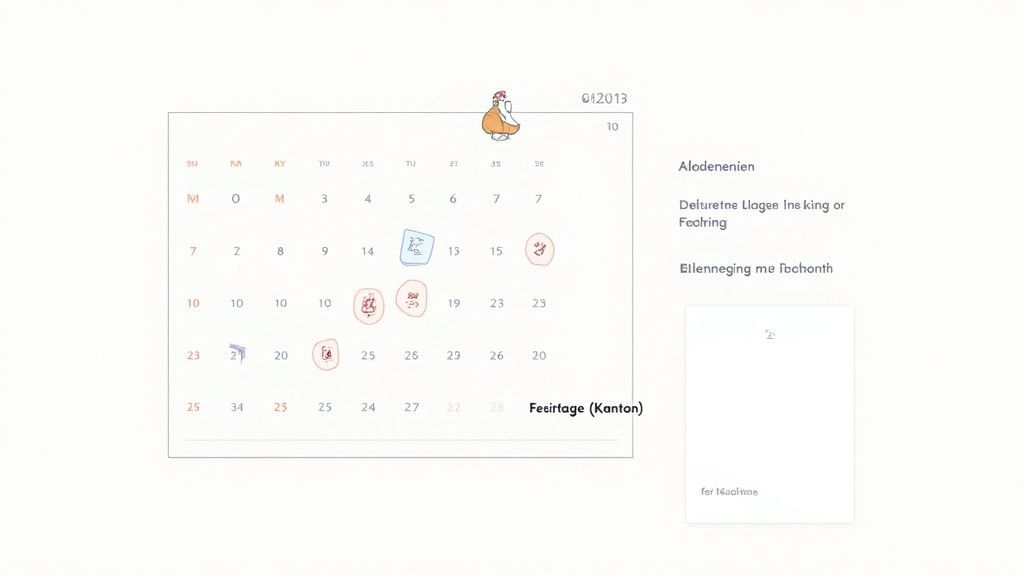
We are now setting up exactly such a system by creating a separate table just for absences. In this sheet you record every single incident: employee name, start and end date as well as a clear reason such as “vacation”, “sick” or “military service”.
Make absences visible directly in the shift plan
Of course, a pure list is of little use if the information doesn't go where it belongs - directly into the shift schedule. Using a clever formula, we ensure that a newly entered absence automatically lights up in the planning sheet.
Imagine your shift schedule: the days are in the columns, the employees are in the rows. For each cell, i.e. for each day and each employee, a formula now checks whether an entry exists in the absence sheet for this date.
A combination with SUMMEWENN or ZÄHLENWENNS is ideal for this. The formula quickly checks whether the employee's personnel number and the date of the shift day in the absence list match. If this is the case, she writes the reason for the absence (such as a “U” for vacation) directly into the cell. This way you can see at a glance who is not available and when.
Integrate cantonal holidays correctly
A crucial point, especially for companies in Switzerland, is the correct handling of cantonal holidays. These not only influence the available working days, but of course also the calculation of vacation entitlements.
A separate spreadsheet that exclusively lists all relevant public holidays in your canton is the cleanest solution here. This range can then be expressed in formulas such as
NETTOARBEITSTAGEto ensure that these days are not incorrectly counted as regular working days.
An Excel template that became popular among Swiss medium-sized businesses in 2023 covers up to 17 different absence types from vacation to further training and illness to parental leave and on-call services. The biggest advantage: the automatic integration of canton-specific public holidays, which, as we know, vary greatly in Switzerland. There are more details about such absence planners here.
Keep track of vacation entitlements
One of the most common questions in the HR department is: “How many vacation days do I actually have left?” You can answer this question proactively with a simple overview and thus ensure absolute clarity.
To do this, set up a small area in your Excel file that shows three key values for each employee:
- Overall claim: The contractually agreed annual vacation. A fixed value.
- Days taken: This value is given with a
ZÄHLENWENNS-Formula drawn live from your absence list. The formula simply counts all entries that are assigned to the employee and marked as “vacation”. - Remaining claim: This is then just a simple subtraction (
Gesamtanspruch - Genommene Tage).
This small but effective overview creates transparency, prevents misunderstandings and saves you endless discussions at the end of the year. You always have a reliable database at hand.
When your Excel planning reaches its limits
Excel is a fantastic tool, no question about it. I like to compare it to a Swiss Army knife – it can do an incredible amount, but there are often better tools for highly specialized tasks. At some point there comes a point where your lovingly built Personnel planning with Excel creates more problems than it solves.
It is crucial to recognize these signs early. This way you can plan the next step before frustration and mistakes take over.
Concurrent access becomes a nightmare
One of the first and most annoying signs: the struggle for the “one true” version of the file. As soon as several dispatchers have to plan at the same time, chaos breaks out. Who has the most current file now? Who just overwrote whose changes?
Sure, you can try shared drives or online versions like SharePoint. But the risk of synchronization conflicts, overwriting and data loss remains. Planning becomes tough and error-prone because only one person can really work safely at a time.
Complex rules are difficult to automate
Your company grows, and with it the complexity. Suddenly you have to take into account statutory rest periods, industry-specific bonuses or complex working time models.
In Excel, this can somehow be represented with nested IF functions and formula monsters, but maintenance becomes hell. An automatic check as to whether the statutory rest period of 11 hours between two shifts is hardly reliable in Excel and, above all, cannot be implemented dynamically.
The tipping point is when you spend more time fixing and checking your Excel logic than actually planning. Your tools should support you, not slow you down.
Data protection and data security are at risk
Quite honestly: personnel data is some of the most sensitive information there is. An Excel file that is simply sent via email or stored on an unsecured drive is a massive security risk.
It is difficult to understand who viewed or changed which data and when. GDPR-compliant management of access rights and complete logging of changes are practically impossible with a simple Excel file. You should definitely not underestimate this risk.
Checklist: Time to change?
If you're nodding your head at several of these points, it's probably time to consider a specialized software solution.
- Collaboration: Do more than two people regularly plan on the same plan at the same time?
- Complexity: Do you need to automatically check complex, multi-level rules (e.g. rest times, qualification checks)?
- Data protection:Does the thought of sensitive personnel data being stored in an unsecured file make you sick to your stomach?
- Mobility: Do your employees need to be able to report and view their availability or working hours while on the go?
- Growth: Do you spend several hours each week on manual data maintenance that could actually be automated?
It's not about demonizing Excel. It's a powerful tool. But it's about realistically assessing when you've outgrown your tried and tested tool and the next step simply makes more sense for your company.
Typical questions and answers about personnel planning in Excel
When it comes to personnel planning with Excel, the same hurdles keep cropping up. Don't worry, this is normal. Here are the solutions to the most common stumbling blocks so that you can quickly regain perspective.
How can I automatically take cantonal holidays into account?
A classic! The solution is easier than you think: create your own spreadsheet just for the holidays. List all the public holidays relevant to your canton with the exact date.
Now comes the trick: Mark this entire data area and give it a clear name in the name field (that's the small field to the left of the formula line), for example Holidays_ZH.
Now if you use formulas like NETTOARBEITSTAGE To use it, just type Feiertage_ZH as an argument. Excel then grabs the list and knows exactly which days it should treat as non-working days for all calculations.
Can overstaffing or understaffing be highlighted in color?
Yes, absolutely! This is a prime example of the power of conditional formatting. First, of course, you have to define a target value for each shift - i.e. how many people you need. Then you count in an auxiliary column using the formula ZÄHLENWENNS the employees actually scheduled for this exact shift.
Now comes the magic: you create a new conditional formatting rule. This rule is very simple and only compares the actual value (your count) with the target value. As soon as the two values differ from each other, the rule automatically colors the cell red. This means that bottlenecks or over-planning are immediately apparent to you.
How do I protect my formulas from being accidentally overwritten?
This happens faster than you think and can bring the whole planning to a standstill. The best protection against this is Excel's built-in sheet protection. This allows you to specifically lock only those cells that contain formulas or fixed specifications. All other cells in which your team should actively enter something - such as the assignment via drop-down menu - remain freely accessible.
You can find this function under the tab “Check” and then “Protect Leaf”. My tip: Give the protection a password and uncheck “Select locked cells”. This means that the protected cells can no longer even be clicked on, which drastically reduces the susceptibility to errors.
Is your Excel planning slowly reaching its limits? If you are looking for a solution that seamlessly combines availability, time recording and payroll in one system, then it's time for the next step. job.rocks automates your entire operational planning and gives your team the right mobile tools. Discover now how you can reduce your administrative effort to a minimum.